
Putting it together: from a double-click to a running app
Follow one app from the moment you double-click it, through the disk, RAM, the operating system and the processor, to the first thing it draws on your screen.
From the click to code in RAM
- 1. Input (lesson 10)
Your double-click reaches the processor as a hardware interrupt. The operating system works out that you clicked the app's icon.
- 2. Find the file (lesson 9)
The file system looks up the app's name in its table and finds which blocks on the SSD hold it.
- 3. Make a process (lessons 10 and 11)
The kernel creates a new process with a PID, its own empty page table and its own private address space.
- 4. Load (lessons 7, 9 and 11)
The app's machine code and data are mapped into that address space. Pages are copied from the SSD into RAM, often only when first touched, through page faults. This disk step is usually the slowest part of starting an app.
Check yourself
Which order is right for starting an app?
- Create a process, set the PC to the entry point, find the file on the SSD, copy code into RAM
- Find the file on the SSD, create a process, copy code into RAM, set the PC to the entry point
- Copy code into RAM, find the file on the SSD, set the PC to the entry point, create a process
- Set the PC to the entry point, copy code into RAM, create a process, find the file on the SSD
Show the answer
Find the file on the SSD, create a process, copy code into RAM, set the PC to the entry point
Right. You can't load what you haven't found, you need a process to load it into, and the program counter can only point at code that's already in memory.
Entry point
The address of a program's first instruction, written in the program file. Once the code is loaded, the kernel sets the new process's program counter to this address and the scheduler gives it a time slice (lesson 10). From that moment it's the loop from lesson 6: fetch, decode, execute, with registers and the arithmetic unit from lesson 4 running machine code from lesson 5, and the caches from lesson 8 warming up as it goes.
In the animation, the new process is PID 42 and its entry point is 0x1000, so the processor starts with PC = 0x1000.
GETTING TO THE SCREEN
System calls and device drivers
A running app can't paint the screen itself; like any process it has restricted rights. To show a window it makes system calls, asking the kernel to do it. Inside the kernel, device drivers (code that knows how to talk to one particular piece of hardware) pass the work to the graphics chip, which turns it into pixels, each one just a few bytes of colour (lesson 2). The same path runs the other way for input: a key press is an interrupt, a driver reads it, and the kernel hands it to the right process.
An app wants to show the word Hi. It asks the kernel for a window; the graphics driver and chip light up the pixels that make the letters.
Check yourself
How does a running app get its window onto the screen?
- It writes pixels straight into the graphics chip itself
- It asks the kernel with system calls; device drivers and the graphics hardware turn that into pixels
- The processor's arithmetic unit draws the pixels directly
- It saves the window to the SSD, and the screen reads it from there
Show the answer
It asks the kernel with system calls; device drivers and the graphics hardware turn that into pixels
Right. Apps don't touch hardware directly. They ask the kernel, and the kernel's drivers and the graphics chip do the drawing.
Step through it
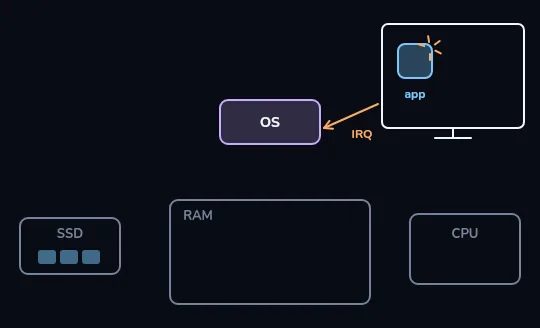
The double-click reaches the OS as an interrupt At the top right is a screen with an app icon and a click burst on it. An arrow marked IRQ runs from it to the OS box: your double-click reaches the operating system as an interrupt. The SSD, RAM and processor wait below, not yet involved.
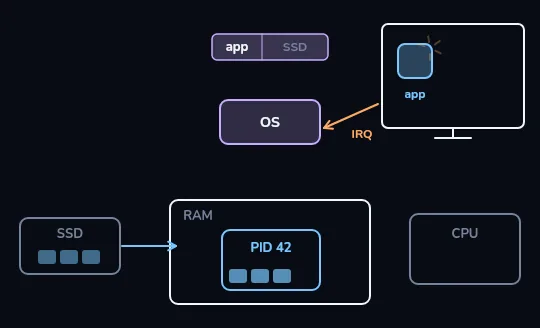
Find the app, make process 42, copy its code The OS looks up the app in the file system's table, and a row flashes. Blocks travel from the SSD into RAM, and a new box, PID 42, appears inside RAM: the system has made a new process, number 42, and copied its code into memory.
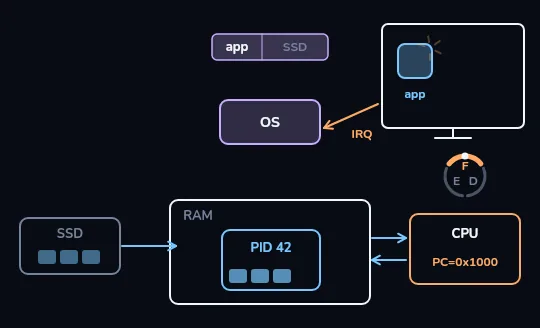
PC = 0x1000: fetch, decode, execute begins PC=0x1000 appears on the processor: the program counter is set to the app's entry point, its first instruction. The F, D, E ring from lesson 6 starts turning, and arrows run both ways between RAM and the processor as instructions are fetched and run.
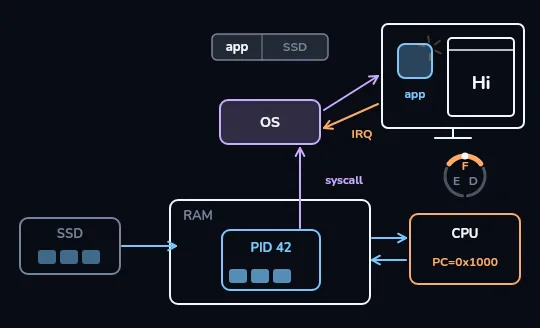
A system call, and Hi on the screen An arrow marked syscall runs from PID 42 to the OS, then another from the OS to the screen, where a window with Hi appears. The app asked the system to draw, and its first window is on your screen.
Check yourself
Starting a big app takes a few seconds. Which step is usually the slowest?
- The interrupt from the double-click
- Creating the process and its PID
- Reading the app from storage into RAM
- Setting the program counter to the entry point
Show the answer
Reading the app from storage into RAM
Right. The interrupt, the new process and setting the PC are all quick kernel work. Reading many megabytes from a disk that's roughly a thousand times slower than RAM is where the time goes.
After the first window
- 5. Run (lessons 4, 5, 6, 8, 10)
The process takes its turns on a core, fetching, decoding and executing machine code, with the caches filling up as it goes.
- 6. Output (lesson 2)
Each time it needs to draw, it makes system calls, and drivers and the graphics chip turn that into pixels, a few bytes each.
- 7. Keep going (lesson 10)
Most of the time the app is waiting. Each key press is an interrupt, and the scheduler shares the core with everything else.
- 8. Close (lesson 11)
When you quit, the kernel frees the process's pages and removes it. Nothing of it is left in RAM, except what the system chooses to keep.
Check yourself
Nazanin closes a photo editor and reopens it a minute later. It starts faster the second time mostly because the operating system kept the app's file data cached in RAM, so it didn't have to read it all from the SSD again.
Show the answer
True
True. The slowest step of a launch is reading from storage. If the system still has that data in its disk cache in RAM, the second launch skips most of the disk reads.
From switches to apps
- Bits and gates: switches that are on or off, wired into gates that can add (lessons 2-3).
- The processor: registers, an arithmetic unit and a control unit running machine code, one instruction at a time, through fetch, decode, execute (lessons 4-6).
- Memory: RAM's numbered boxes, caches that keep hot data close, and a disk that remembers with the power off (lessons 7-9).
- The operating system: processes sharing cores, each with its own private memory, asking the kernel for anything involving hardware (lessons 10-11).
Check yourself
Match each moment of an app's launch to the part that handles it
Show the answer
- Your double-click arrives → A hardware interrupt
- Finding the app's blocks on the SSD → The file system
- Giving the new program private memory → Its page table
- Knowing where to start running → The entry point
- Turning a draw request into pixels → The graphics driver and chip
Lesson recap
- A double-click reaches the operating system as an interrupt.
- The file system finds the app on the SSD, and the kernel creates a new process with its own page table.
- The app's code is copied into RAM, often page by page through page faults; this disk step is usually the slowest part.
- The kernel sets the program counter to the entry point, and fetch, decode, execute takes over.
- To draw, the app makes system calls; drivers and the graphics chip turn them into pixels.
- A second launch is often faster because the operating system kept the file data in a disk cache in RAM.